LaTeX using Overleaf
Create documents via a cloud-based account
Source code or rich text format
Collaborating and sharing documents
Versioning and track changes
Templates for a variety of documents and publishers
Link with other tools in your research workflow
Pro account with your berkeley.edu address
Example
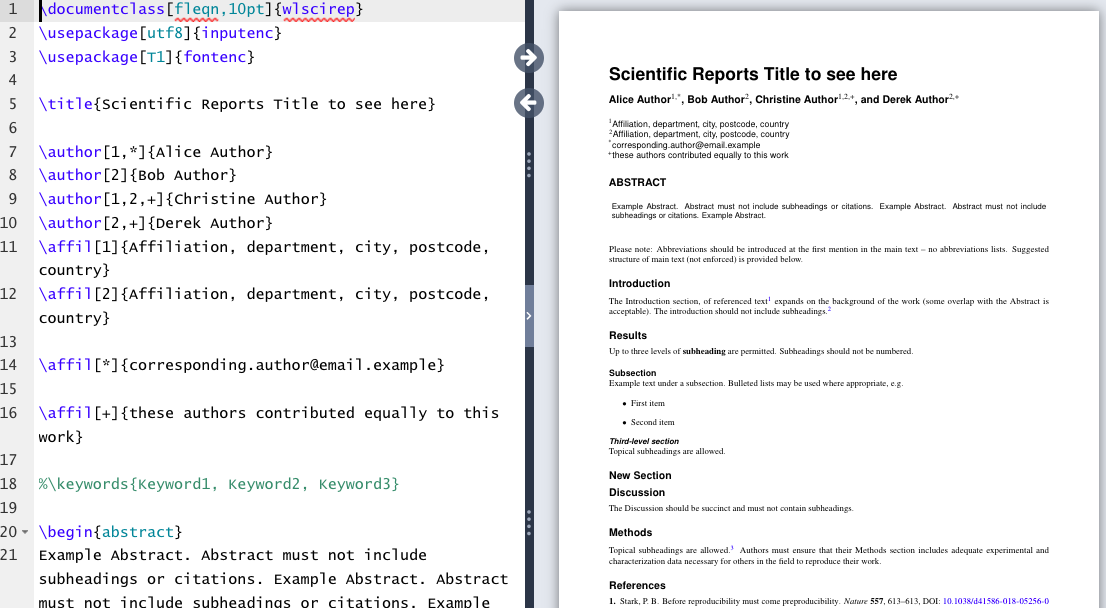
Look at the template below to get a sense of how Overleaf works. On the left side, you’ll see the content written in LaTeX. On the right side, the rendered document.
Structure of a document
| Term | Description | Example |
|---|---|---|
| Command | Control sequence which performs an action | \newpage |
| Preamble | Block of commands that define the type of document you are writing, the language you are writing in, the packages you would like to use. Comes before \begin{document} | \documentclass{article} |
| Package | Enable you to create bibliographies, insert images and figures, and write formulas. | \usepackage{amsmath} |
| Environment | Block of code with specific behavior depending on its type | \begin{} & \end{} |
| Body | Content of document enclosed inside an environment | \begin{document} |
Basic Commands
Bold:
\textbf{example}Italics:
\textit{example}Underline:
\underline{example}
Font typefaces: Change in preamble. More information:
https://
Make Title
The simplest option for making a title is to use the \maketitle command which draws from the following declarations within the preamble:
\author\date\thanks\titleOR use the
\begin{titlepage} ... \end{titlepage}
environment.
The titlepage environment creates a title page, i.e. a page with no printed page number or heading. It also causes the following page to be numbered page one.
Formatting is left to you, but commands like \centering, \vspace, and \vfill are helpful.
Basic Math
To display math inline with text, place formula or symbol in between $:
$x + y = z$ renders inline:
Display mode \[ x + y = z \] will center the equation on its own line:
Lists
Use the \begin{itemize}...\end{itemize} environment to create unnumbered lists.
\begin{itemize}
\item Apples
\item Cherries
\item Oranges
\item Peaches
\item Watermelon
\end{itemize}
This code results in:
Apples
Cherries
Oranges
Peaches
Watermelon
Use the similar \begin{enumerate}...\end{enumerate} environment to create numbered lists.
Exercise 1
Objective:
Practice several basic LaTeX commands in a new project.
Open a new project in Overleaf.
Create a title page
Add
[title page]to make preamble command\documentclass[titlepage]{article}After
\title, add “VOLT LaTeX Basics Assignment”After
\author, add your nameConfirm that the date is correct or edit if needed
Create Title Page using command
\maketitleinserted after\begin{document}
Add a new section labeled “Practice” using the
\section*command.Add the following paragraph under that section using “inline” math commands:
We know the initial pressure , the initial temperature , and the final temperature .
Question: What is the final pressure ?
Add a new section labeled “California Road Trip Destinations”
Make a numbered list of four items, for example:
Yosemite
Big Sur
Lake Tahoe
Death Valley
Commands needed: \section*{}, \times, $...$, \begin{enumerate}...\end{enumerate}. Degree can be represented several ways such as $^\circ$ or \degree (requires the {gensymb} package). Subscripts and superscripts are written using the symbols _ and ^.