Access Berkeley Dissertation Template
LaTeX Basics
Introduction
LaTeX is a typesetting system that allows you to focus on your content instead of formatting - formatting is done separately from entry.
You tell LaTeX “what it is” not “how it looks.”
LaTeX using Overleaf
Create documents via a cloud based account
Source code or rich text format
Collaborating and sharing documents
Versioning and track changes
Templates for a variety of documents and publishers
Sync with other tools in your research workflow
Pro account with your berkeley.edu address
Example template
Look at the template below to get a sense of how Overleaf works. On the left side, the content is written in LaTeX. On the right side, the rendered document.
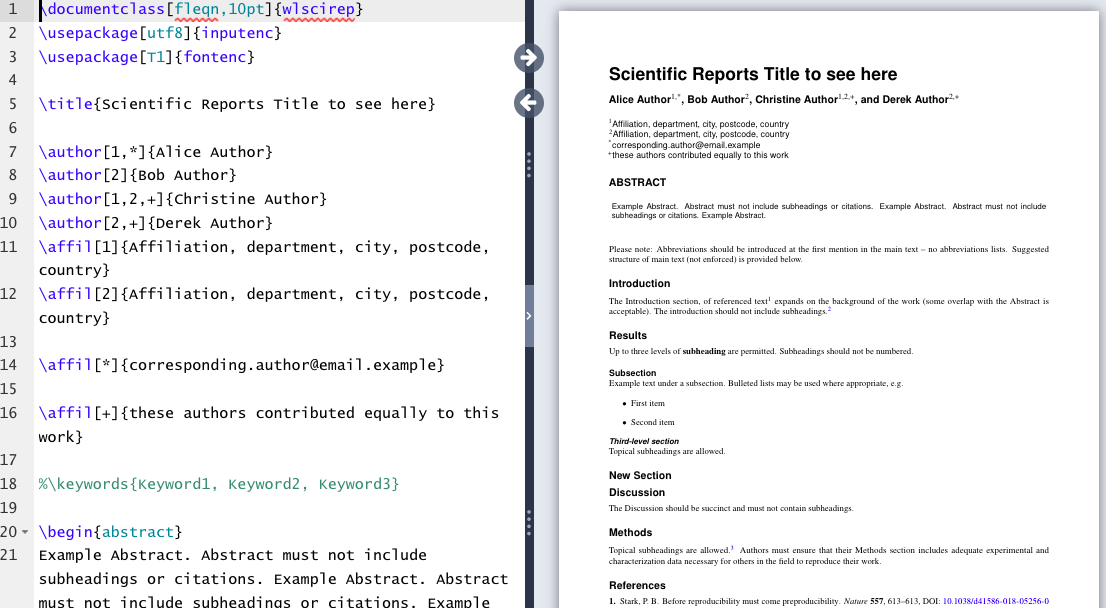
Structure of a document
| Term | Description | Example |
|---|---|---|
| Command | Control sequence which performs an action | \newpage |
| Preamble | Block of commands that define the type of document you are writing, the language you are writing in, the packages you would like to use. Comes before \begin{document} | \documentclass{article} |
| Package | Enable you to create bibliographies, insert images and figures, and write formulas. | \usepackage{amsmath} |
| Environment | Block of code with specific behavior depending on its type | \begin{} & \end{} |
| Body | Content of document enclosed inside an environment | \begin{document} |
Document Metadata
Generic Document Metadata + Titles
The simplest option for making a title is to use the \maketitle command which draws from the following metadata declarations within the preamble: \author \date \thanks \title
Thesis and Dissertation Document Metadata
The UC Berkeley Accessible Thesis Template also includes a section for metadata under the \hypersetup block in the preamble listed as: pdftitle = {Thesis Title}, pdfauthor = {Bear, Oski}, pdflang=en-US
Basic Commands
Bold: \textbf{example}
Italics : \textit{example}
Lists
Use the \begin{itemize}...\end{itemize} environment to create unnumbered lists.
List syntax
\begin{itemize}
\item Apples
\item Cherries
\item Oranges
\item Peaches
\item Watermelon
\end{itemize}
Formatted List
Apples
Cherries
Oranges
Peaches
Watermelon
Use the \begin{enumerate}...\end{enumerate} environment to create numbered lists.
Accessible PDFs
Take steps to create an accessible PDF when you initiate any new project.
Enable basic tagging essential for an accessible PDF in the document’s metadata with the syntax below. Tagging assists screen readers, differentiating elements like headers, body text, figures, and equations.
PDF tagging syntax for general documents
\DocumentMetadata{tagging=on,
    tagging-setup={math/setup=mathml-SE},
    pdfstandard=ua-2,
    lang=en-US
}
PDF tagging syntax for Dissertation Template
\DocumentMetadata{
  lang         = en-US,
  pdfstandard  = ua-2,
  pdfstandard  = a-4,
  tagging-setup = {
    modules = {phase-III, title, table, firstaid, names, toc, sec},
    table/tagging       = presentation,
    table/header-rows   = {1},
  }
}
Descriptions or alternative text are required for particular content elements:
Images: provide alternative or alt-text for images and figures.
Tables: add
\tagpdfsetupto describe table structure before the\tabularenvironment.
Artifacts for decorative content: Mark purely decorative or duplicative graphics so assistive technology skips them.
Following the export and download of your PDF, verify the tag structure in Adobe Acrobat.
Read more about accessibility:
Structuring your dissertation chapters
You may choose to compose your thesis or dissertation in one file (main.tex), but it can be advantageous to split your chapters into separate files to better organize your project, particularly if your chapters will act as standalone articles. Find instructions below for creating individual chapter files in the template.
Instructions for creating chapters
Copy the template: Click “Open as a Template” to create your own copy of the UC Berkeley Accessible Thesis Template
Create a Chapters Folder: In the left-hand file pane of your Overleaf project, click the New Folder icon and name this folder Chapters.
Create individual files for each chapter: Select your new Chapters folder, then click the New File icon to create a .tex file for each chapter.
Tip: Number chapters so they sort logically in the file tree (ex. 01_introduction.tex, 02_lit_review.tex, 03_methods.tex).Write content: Add content to a new chapter file, but do not add document preambles. Begin with:
\chapter{Introduction}
\label{ch:introduction}
Link the Chapters in
main.tex: Openmain.texin the file directory. Scroll down to the line right after\end{frontmatter}. Replace the template’s placeholder chapters (starting at\chapter{About This Template}) with\include{}commands pointing to your new files:
%% ===========================================================================
%% DISSERTATION CHAPTERS
%% ===========================================================================
\include{Chapters/01_introduction}
\include{Chapters/02_lit_review}
\include{Chapters/03_methods}
Tip for Faster Compiling: Compiling the whole PDF can take a long time as the dissertation lengthens. Using the \include{} command, you can compile just the chapter you are currently writing while keeping all your page numbers, table of contents, and references intact. To do this, add the \includeonly{} command to the preamble of main.tex (anywhere before \begin{document})
\includeonly{Chapters/01_introduction} % Only this file will compile
\begin{document}
Exercise 1
Mathematics and Equations
To render simple equations, you also need to know syntax and commands for operators, relations, subscripts, superscripts, and fractions.
Operators & Relations
+, -, =, >, < work as expected. Here are some other commands:
| Command | Display | Command | Display |
|---|---|---|---|
\times | \leq | ||
\div | \pm | ± | |
\geq | \approx | ||
\neq | \cdot |
Math Modes
Inline Mode: Enclose math in
$...$to display equation or formula inline with text:
$x + y = z$ renders inline:
Display mode:
\[ x + y = z \]or$$ x + y = z $$will center the equation on its own line:
Math Syntax
Subscripts/Superscripts
Subscript: use the underscore ( _ )
Superscript: use the carret (^)
If the subscript or superscript includes more than one character, enclose it in curly brackets--otherwise the command applies only to the first character.
Example:$x^n+1$gives but$x^{n+1}$gives
Fractions
To display a fraction, use the command \frac followed by the numerator and denominator in curly brackets.
Example: \frac{1}{x} gives
More Advanced: Math Packages
amsmath & amssymb Packages
The amsmath and amssymb packages provide you with additional symbols and commands for structuring equations.
To include them, add these commands to the preamble of your LaTeX document:
\usepackage{amsmath} \usepackage{amssymb}
amsmath: Equations Environment
Use the \begin{equation}...\end{equation} command to include a numbered equation in display mode. Use \begin{equation*} for unnumbered equations.
\begin{equation*}
\frac{\partial Q}{\partial t} = \frac{\partial s}{\partial t}
\end{equation}
results in
Exercise 2
Additional challenges
Recreate this equation in your document:
Recreate this equation in your document:
Tables
Tables use the table environment for positioning and captions. The table environment is wrapped around the tabular environment to layout the actual data/cell grid. We will also introduce the package booktabs in the preamble to enable more formatting options.
| Basic Commands | Description |
|---|---|
l, r, c | column alignment |
& | ampersand separates columns |
\\ | double backslash begins new row |
\hline or \toprule \bottomrule | horizontal line |
| | vertical line |
Example: Two column table
Table syntax
\usepackage{booktabs}
....
\begin{table}
\caption{Inventory}
\tagpdfsetup{table/header-rows={1}}
\begin{tabular}{lc}
Item & Quantity
\midrule
Widget & 1 \\
Gadget & 2 \\
Cable & 3 \\
\end{tabular}
\end{table}
Table example
Table 1:Inventory
| Item | Quantity |
|---|---|
| Widget | 1 |
| Gadget | 2 |
| Cable | 3 |
Exercise 3
Figures and Images
Uploading a figure or images
Incorporating images and figures into your project is best accomplished by creating your figures, particularly graphs and plots, outside of Overleaf and then importing them into Overleaf.
Add
\usepackage{graphicx}in the preamble of your document.Upload images using the “upload” icon and navigate to the location of your figure.
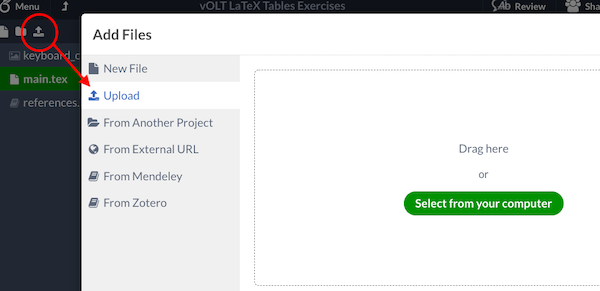
Within the text, place the image using the command
\includegraphics{filename.jpg}Or use the the
figureenvironment for proper positioning, alt text, and captioning.
Example syntax
\begin{figure}[ ]
\centering
\includegraphics[width=0.5\linewidth,
  alt={photo of cat from above with left paw near keyboard}]{keyboard_cat.png}
\caption{Cat sitting at keyboard}
\label{fig:keyboard_cat}
\end{figure}
Figure Placement
Designate figure position with specifiers Pass position arguments to control floating behavior: [h] (here), [t] (top), [b] (bottom), or [p] (separate page).
\begin{figure}[b]
\centering
\includegraphics[width=0.5\linewidth,
  alt={photo of cat from above with left paw near keyboard.}]{keyboard_cat.png}
\caption{Cat sitting at keyboard.}
\label{fig:keyboard_cat}
\end{figure}
Exercise 4
Creating Bibliographies in LaTeX
Objective: Learn the basic commands to create and edit in-text citations and bibliographies
Step 1: Getting started with a .bib file
In order to include in-text citations and a bibliography, the document needs to reference a .bib file.
There are three ways to include a .bib file in a project in Overleaf.
Upload your own
.bibfile that you create or export from a citation manager.Link to a URL (
.bib).
We will follow the first option.
Step 2: Populate the .bib file, following the example code below
@article{drachen2016sharing,
  title = {Sharing data increases citations},
  author={Drachen, Thean and Ellegaard, Ole and Larsen,
  Asger and Dorch, S{\o}ren},
  journal={Liber Quarterly},
  volume={26},
  number={2},
  year={2016},
  url={https://doi.org/10.18352/lq.10149},
}

@misc{fsci2021,
  author={Teplitzky, Samantha, and Tranfield, Wynn},
  title={Introduction to Open and Reproducible Practices in
  {Earth Sciences}},
  maintitle={Case Studies in the {Earth Sciences: Current}
  Approaches to publishing, data and computation},
  eventtitle={{Force 11 Scholary Communication Institute (FSCI)}},
  venue={Virtual},
  eventdate={2021-07-27/2021-08-03},
}
Step 3: Configure the preamble & body
Bibliography Packages
We will use the biblatex package to generate in-text citations and bibliographies. Biblatex is a flexible package for generating citations.
| Commands required for the preamble | Explanation |
|---|---|
\usepackage[backend=biber,style=apa]{biblatex} | calls in the biblatex package |
--> backend=biber | defines Biber as the interface between the .bib data file and the LaTeX document |
--> style=apa | sets your citation rules to APA style (this can be swapped for ieee, mla, nature, etc.) |
\addbibresource{example.bib} | calls in the .bib file, which has the citation information for in-text citations and the bibliography |
| Commands required for the body | Explanation |
|---|---|
\printbibliography | inserts the bibliography, which will contain citations referenced in the text |
\nocite{*} | prints all publications in bibliography without a citation |
Find more information visit the Overleaf page on bibliography management.
In-text citations
Key: The citation key is the internal label inside the \cite{} command used to call in a citation or reference a source.
Example: To cite Drachen 2016 within your text, type \cite{drachen2016sharing}
| Command | Description | Example |
|---|---|---|
\cite{} | bare citation command (according to style) | Knyazeva and Pohl 2013 |
\parencite{} | parenthetical citation | (Singh et al. 2013) |
\citeauthor{} | prints author name(s) | Campbell and Cabrera |
\textcite{} | prints authors followed by a citation label enclosed in () | Elsabbagh, Hamouda, and Taha (2014) |
Exercise 5
Compare your LaTeX code to the solutions at: https://
Link to this workshop: https://